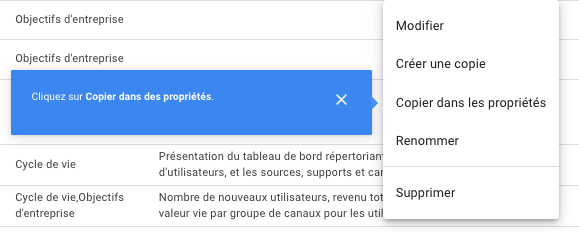
This is one of the new features introduced by Google for its GA4 analytics tool at the beginning of this year. On 21 January, the digital giant announced that it was now possible to copy the configuration of a detailed report or custom exploration from one property to another within the platform. This update will simplify report configuration management and save users valuable time.
GA4 unveils the copying of reports and explorations between properties
Configuring a detailed report on the GA4 analytics tool can sometimes be time-consuming. This is especially true when it comes to repeating the same pattern across different properties within the same account. To assist its users, Google’s analytics tool has recently been updated to allow custom reports to be copied from one property to another.
It is now possible to copy a customised detailed report, including all its summary sheets, to another property. The same applies to customised explorations.
Time savings for users
This new feature unveiled by Google Analytics 4 in January has several positive effects on report management. Firstly, being able to perform this operation improves consistency between different properties. This update also allows users to significantly reduce the time spent configuring reports and explorations on other properties. They can then use this valuable time to focus more on analysing the data collected.
For the time being, this new feature does have some limitations. When copying a report or customised exploration to another property, the latter will have a version created on the date of the operation. In other words, any subsequent changes made to the copied report will not affect the copy, which may disrupt the desired consistency between properties.
How do I use this new feature on GA4?
To be able to copy a report or exploration in GA4, you must first have the appropriate role on the selected properties.
To copy a report, you must have editor (or higher) privileges. First, go to the Library in the Report section of the platform, then click on “Copy to priorities” to the right of a report.
To copy a custom exploration, go to the Explore section of the GA44 platform. As with reports, click on ‘Copy to properties’ to the right of the selected exploration.
After this operation, Google’s analysis tool assigns a status to the copy. The message “Operation successful” indicates that the report or custom crawl has been successfully copied to the desired property.
However, Google Analytics 4 may also display error messages. A “Warning” message means that the process was successful, but that some customisations were not copied, which may interfere with the use of the copied object. Finally, the “Failure” status indicates that the report or custom exploration could not be copied, either because the copy limit has already been reached or because of an issue related to the role assigned to the user on the property in question.
Would you like assistance in taking advantage of the new features of GA4? Please do not hesitate to contact our Data agency.



 Pierre Blarre